
Budgely
Every coin, one tap.
An expense tracker that keeps up with you: log a coffee in two seconds and always know what you can spend today.
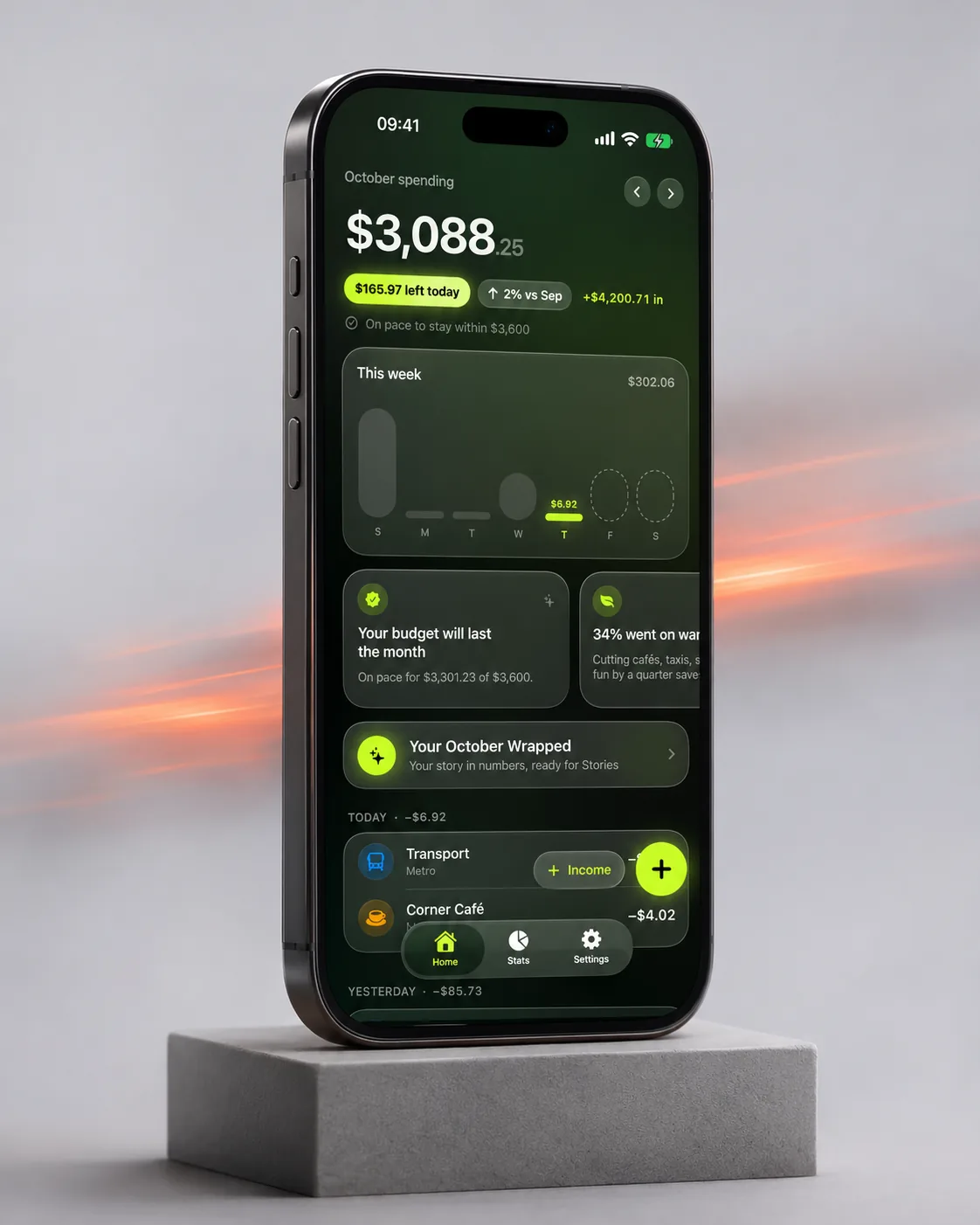
Budgely is built around the two seconds after you pay. A keypad that is already open, widgets on the Home and Lock Screen, and Apple Pay purchases that land by themselves through a Shortcuts automation you control.
Watch it move
The app in 20 seconds
The same short film we made for the App Store. It plays muted; tap the button to pause.
What it does
Screen by screen
-
 01
Add in two seconds
The keypad is open the moment you tap +, with today’s date already set. Or add “+ coffee” right from a widget, Siri or the Action Button.
What is where
- Top: Expense or Income and the amount in big digits.
- Middle: category icons. Tap one, no menus.
- Bottom: a calculator keypad and Save.
-
 02
Apple Pay adds itself
Pay with Apple Pay and a Shortcuts automation you set up once logs the purchase. Bank SMS can be picked up the same way.
What is where
- Top: what you spent this month and what is left for today.
- Card: the purchase marked “Added automatically”.
- Below: a budget forecast and the latest entries.
-
 03
See where it goes
A ring chart by category for the month or the year, with every category listed below it and its share of the total.
What is where
- Top: Expenses or Income, Month or Year.
- Centre: the ring with the total spent.
- List: each category with its amount and percent.
-
 04
Your month, Wrapped
Every month ends with a short story about your money: what you spent, what you saved and the habits behind it. Ready to share.
What is where
- Top: the month and the total spent.
- Tiles: saved, top category, your money personality, coffees.
- Bottom right: Share, for Stories or a message.
App Store screens
Tap a screen to open it full sizeQuestions
Which banks does Budgely work with?
Any bank. Budgely doesn’t connect to banks and never asks for bank logins. Apple Pay with a card from any bank in Wallet is picked up by a Shortcuts automation, bank SMS from any bank by another one, and statement files (CSV or PDF) from any bank cover the rest, including online payments made by typing in a card number.
Does Budgely read my bank notifications?
No. iOS doesn’t allow that. Auto-add works through Shortcuts automations that you set up once and can turn off any time.
Where is my data stored?
On your iPhone only. If you share a budget, that budget and its entries are stored in your iCloud and seen by the people you invite. There is no Budgely server.
Which currencies are supported?
All major currencies, with several accounts in different currencies in Pro.
Documents
